Table of Contents
- Overview
- The Techy Stuff
- Mockups
- Deployment
- Installment Guide
- User Interface Walkthrough
- Community Feedback
- Meet the Developers
Overview
Cooking Compass is an application that allows UH Mānoa students to share and search for creative recipes that respect the constraints—limited kitchen resources, cooking skills, time—many college-goers face. By providing opportunites to find creative, doable recipes, we aim to foster a community that celebrates resourcefulness, healthy eating, and the joy of cooking.
The Techy Stuff
- See our GitHub organization.
- See our team contract.
Milestones
Mockups
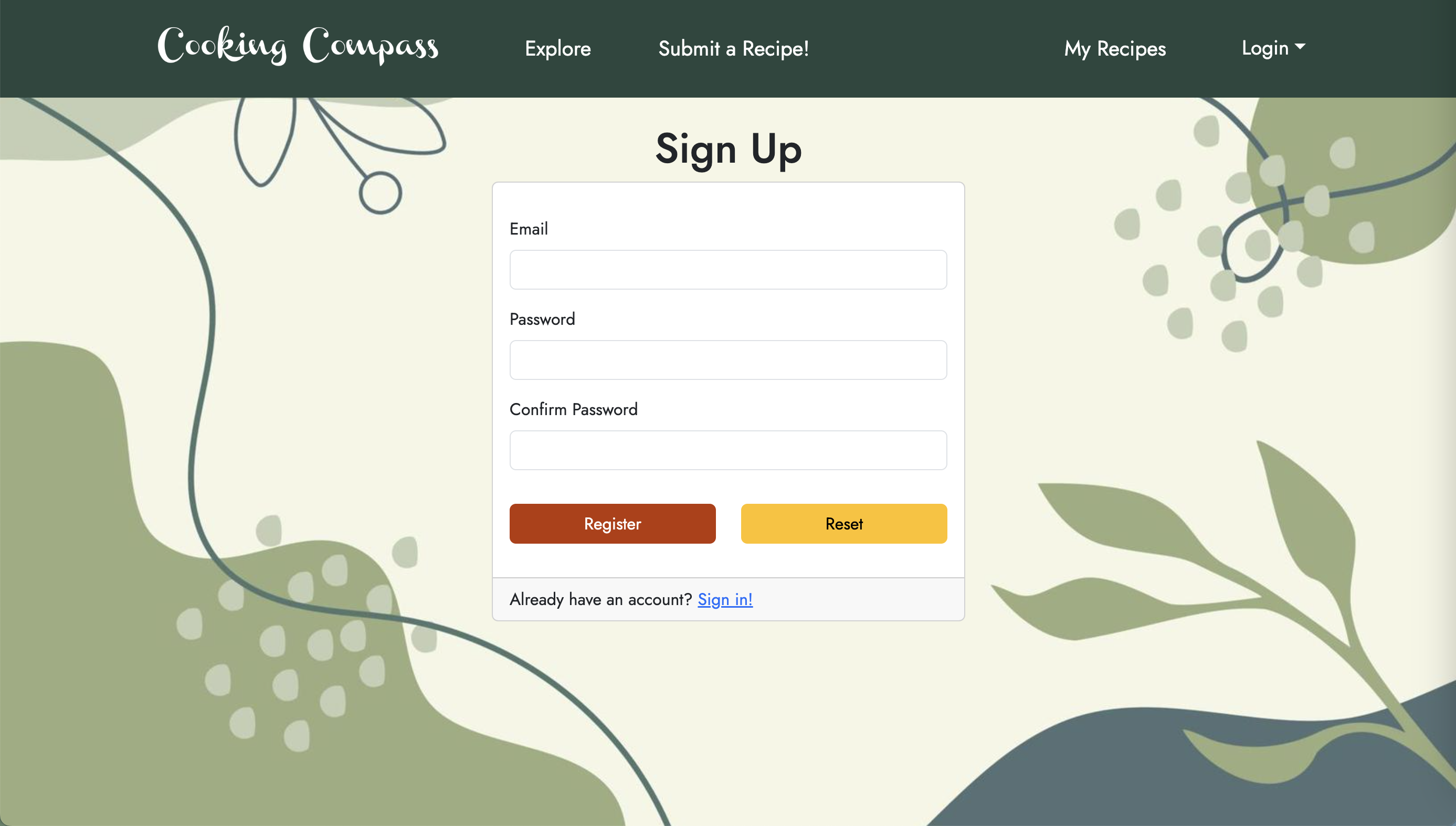
Sign-up Page
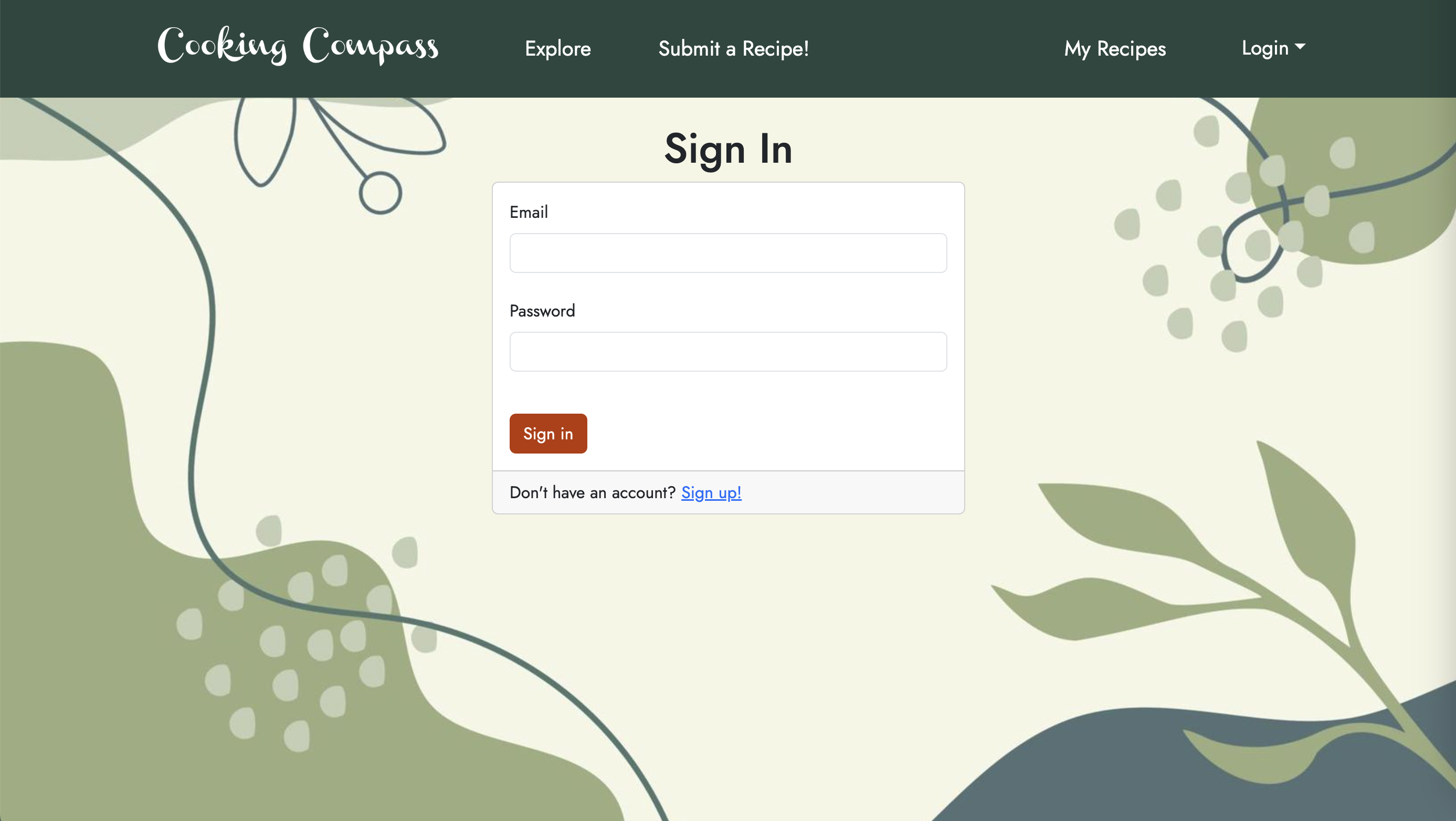
Sign-in Page
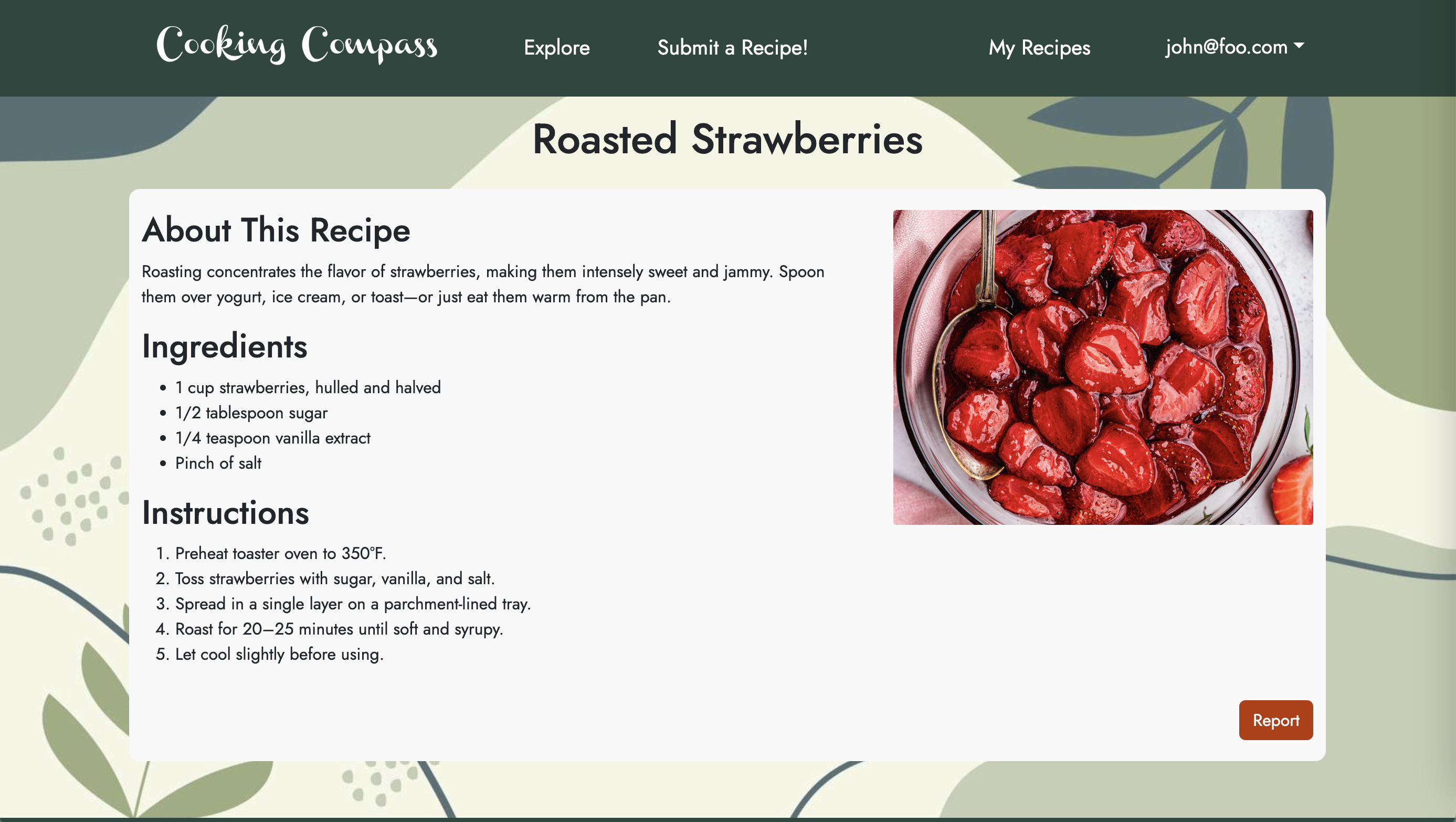
Individual Recipe Page
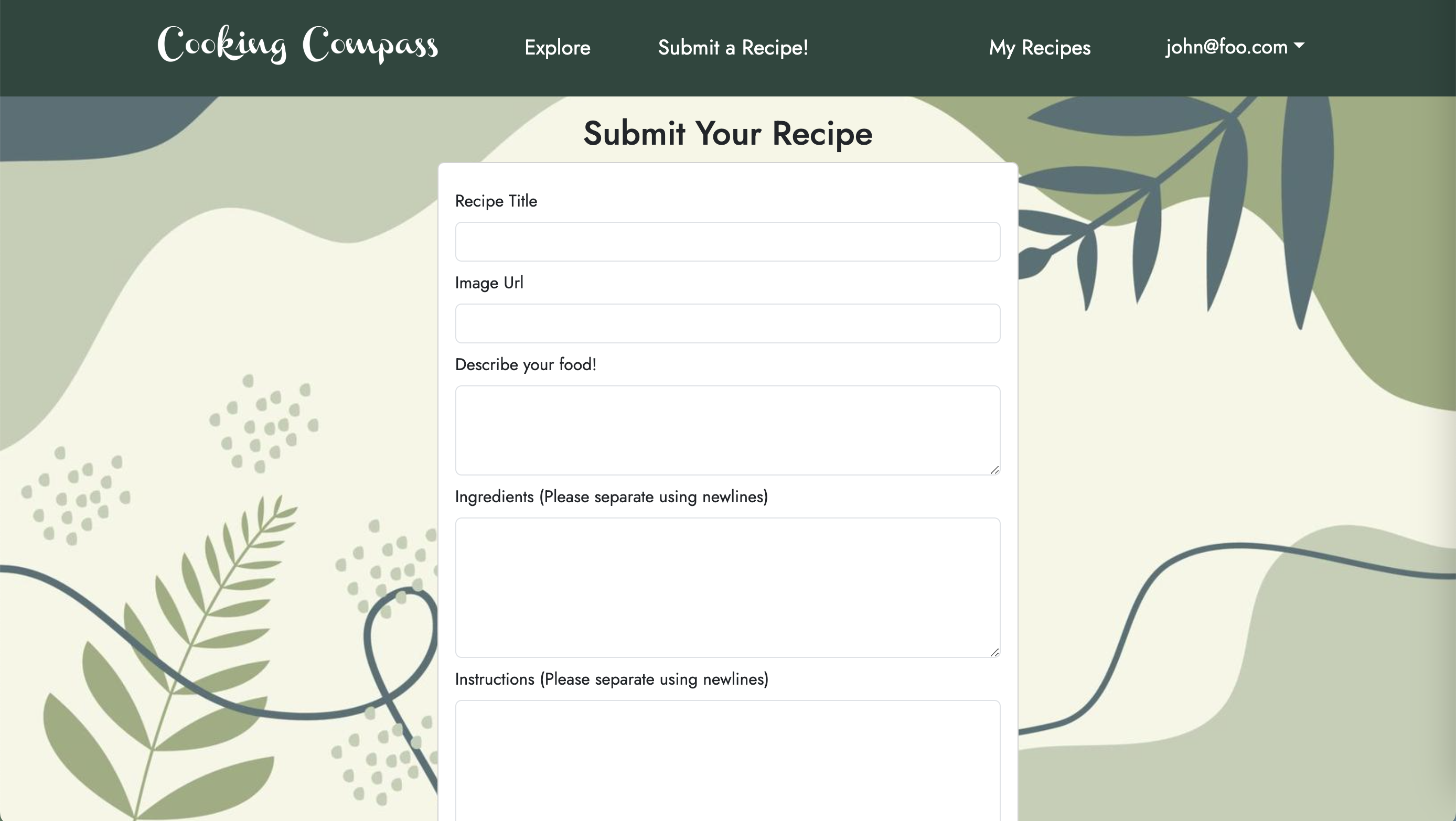
Recipe Submit Page
Landing Page
Deployment

Wish to install and view our program?
First, you’ll want to clone the repository to your own desktop. That requires permitted access so feel free to request access. The link to the repository can be found here.
Second, as this uses postgres to create and maintain databases, you’ll need to install it. You can install it through here.
Once you open the repository into your environment, proceed to the terminal and create that database.
$ createdb testing
Password: (enter password here)
$
NPM and Node.js is both needed for this, so have those too. Then you can proceed to terminal and type:
$ npm install
After that, create a .env file from the sample.env. Set the DATABASE_URL variable to match your PostgreSQL database that you created in the first step. See the Prisma docs Connect your database. Then run the Prisma migration npx prisma migrate dev to set up the PostgreSQL tables.
$ npx prisma migrate dev
Environment variables loaded from .env
Prisma schema loaded from prisma/schema.prisma
Datasource "db": PostgreSQL database "<your database name>", schema "public" at "localhost:5432"

Applying migration `20240708195109_init`

The following migration(s) have been applied:

migrations/
└─ 20240708195109_init/
└─ migration.sql

Your database is now in sync with your schema.

✔ Generated Prisma Client (v5.16.1) to ./node_modules/@prisma/client in 51ms

$
Now, here is how to start it up locally:
Once the libraries are installed and the database seeded, you can run the application by invoking the “dev” script in the package.json file:
$ npm run dev

> nextjs-application-template-1@0.1.0 dev
> next dev

▲ Next.js 14.2.4

- Local: http://localhost:3000
- Environments: .env

✓ Starting...
✓ Ready in 1619ms
Viewing the running app:
If all goes well, the application will appear at http://localhost:3000. You can login using the credentials in settings.development.json, or else register a new account.
ESLint
You can verify that the code obeys our coding standards by running ESLint over the code in the src/ directory with:
$ npm run lint

> nextjs-application-template-1@0.1.0 lint
> next lint

✔ No ESLint warnings or errors
$
User Interface Walkthrough
Landing Page
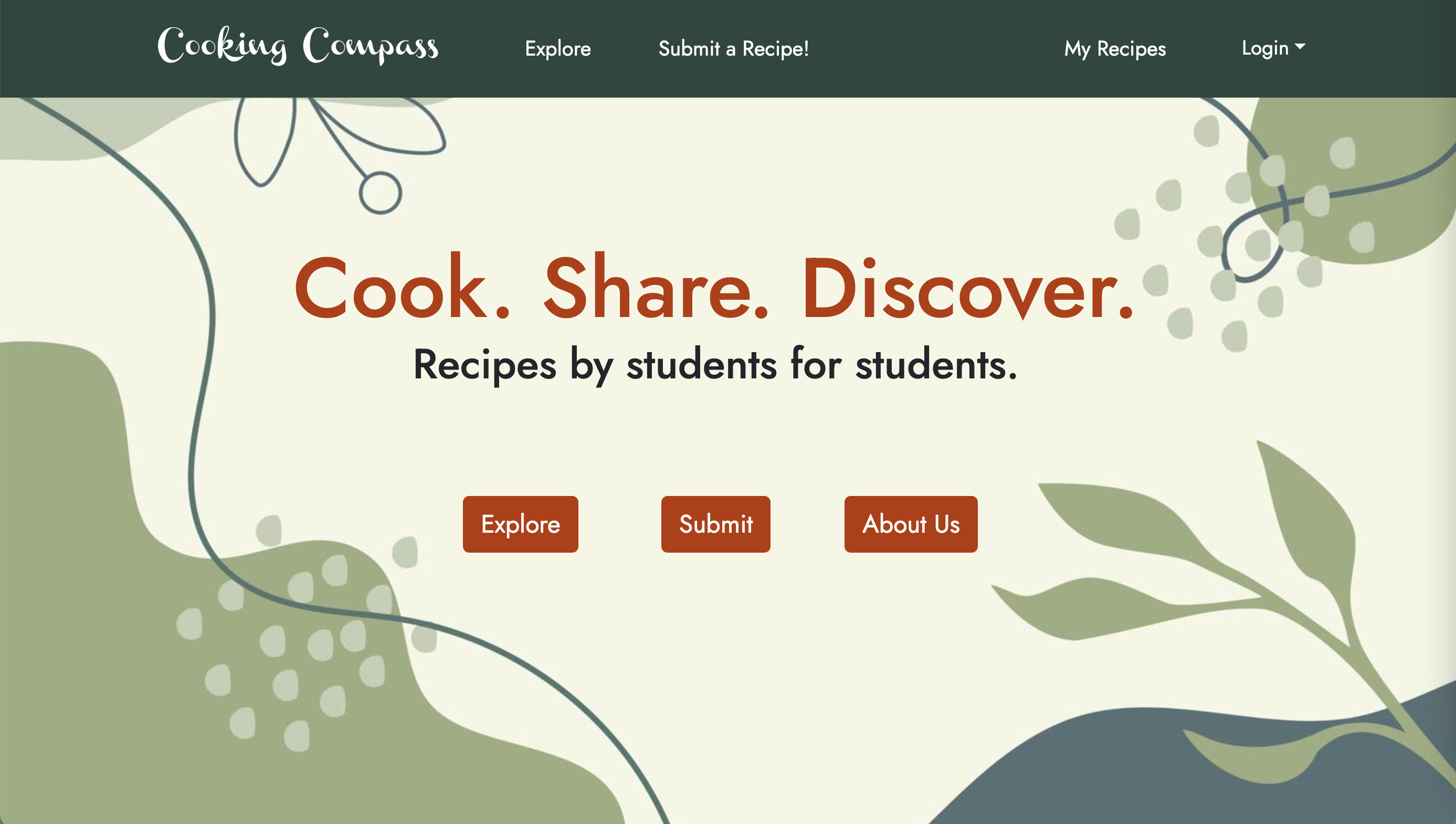
When you first bring up the application, you will see the landing page that provides a brief introduction to the capabilities of Cooking Compass:
About
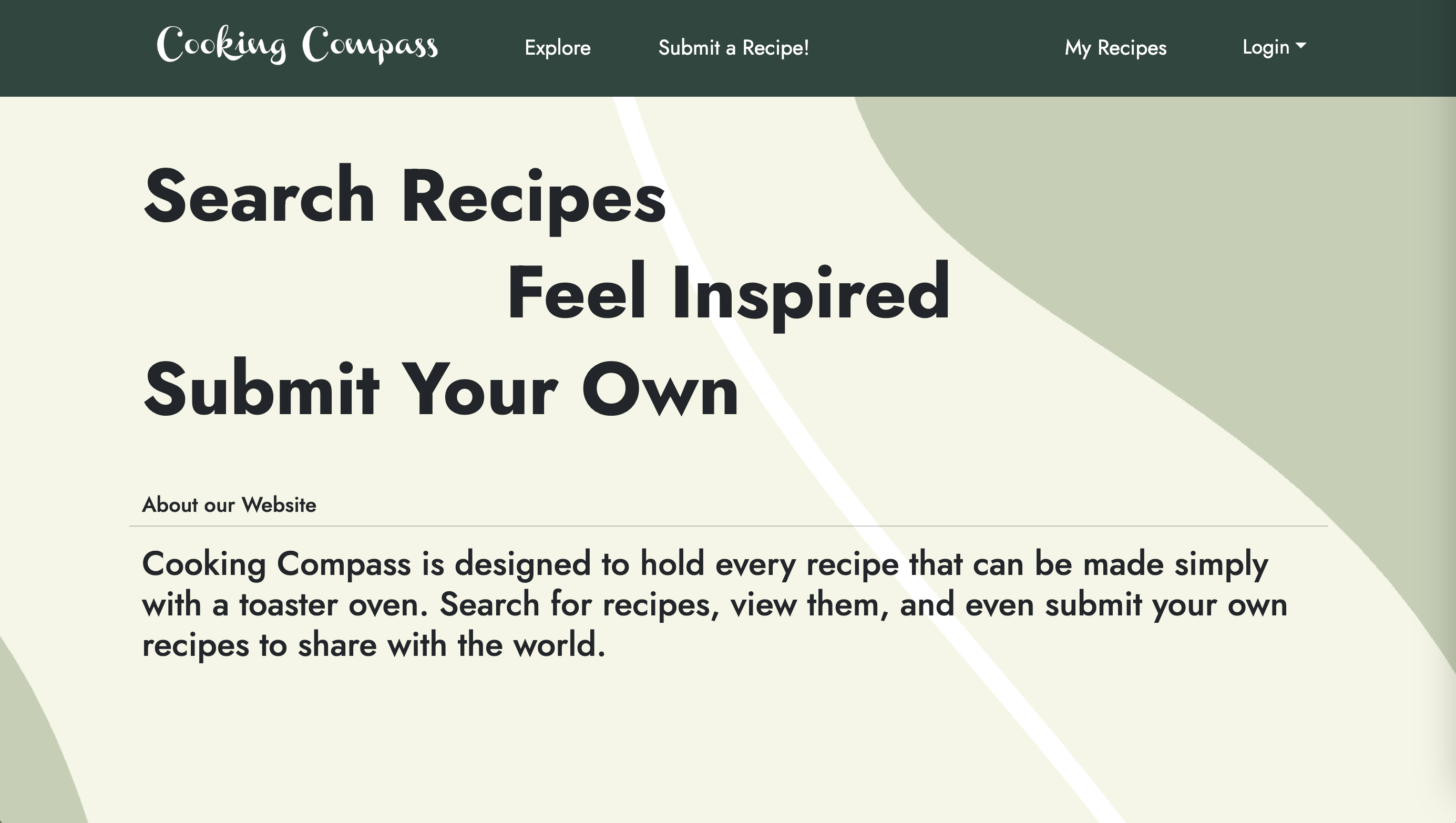
Clicking on the ‘About Us’ link brings up a page containing information about the app, our vision, and frequently asked questions.
Sign Up
If you do not yet have an account on the system, you can register by clicking on ‘Login’, then ‘Sign Up’:
Sign In
Click on the Login link, then click on the Signin link to bring up the Sign In page which allows you to login:
Submit Recipe
After successfully logging in, the user will be taken back to the homepage, but now they will be able to submit recipes. Clicking on the ‘Submit a Recipe’ link will bring up this page:
Explore
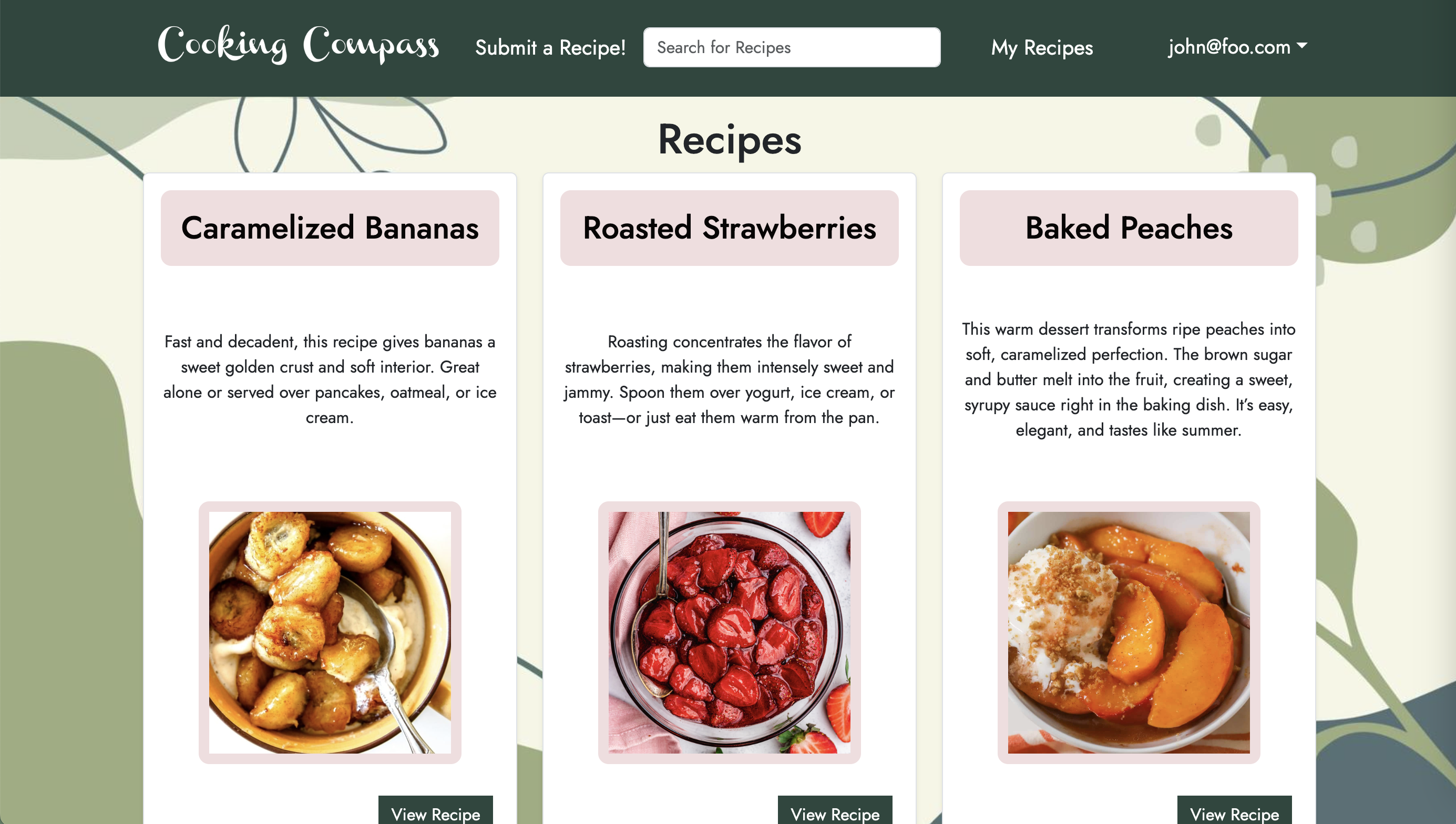
Clicking on the ‘Explore’ button brings up a page that lists all of the recipes that have been submitted to the application. Each card has a preview of the dish, including an image and description. The search bar in the navigation bar fetches specific recipes the user types in as long as they are existing.
Individual Recipe
From the Explore page, the user can click on the ‘View Recipe’ button for the recipe they would like to know more about. This brings up a page that now also lists the ingredients and instructions for that recipe.
Report Recipe
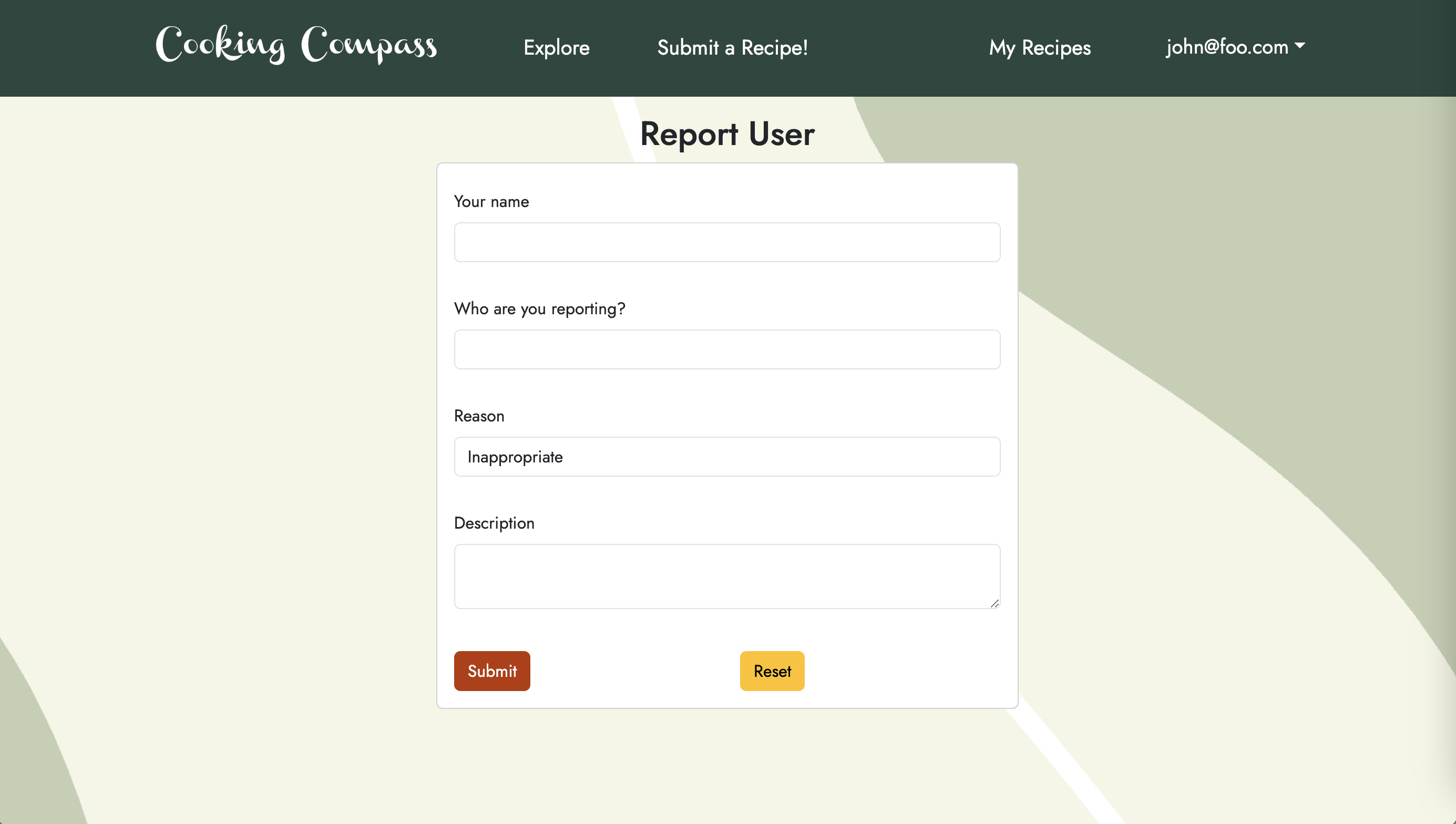
A recipe may not always be suitable for the Cooking Compass community. Clicking the ‘Report’ button on a recipe page allows the user to alert the admins of potential violations.
My Recipes
The user can click the ‘My Recipes’ button on the navigation bar to view the recipes they have submitted. This page allows them to edit or delete their submissions.

Community Feedback
What did you like about Cooking Compass? Is it convenient? Would you use it?
- “I liked how easy it is to follow and use! I would definitely use this to look at other people’s recipes.”
- “Most of it I liked; mainly the structure and the design. I would use this and spread this to other people.”
- “I think it’s very convenient and I can find everything easily.”
Tell us how Cooking Compass could be better.
- “Try to make the spacing between the pictures and descriptions of the receipies not funky.”
- “The comma structure was not the best option. Try to use some less common grammatical symbol/device like a ‘;’.”
- “Clearer instructions on how to write the instructions for each recipe.”